

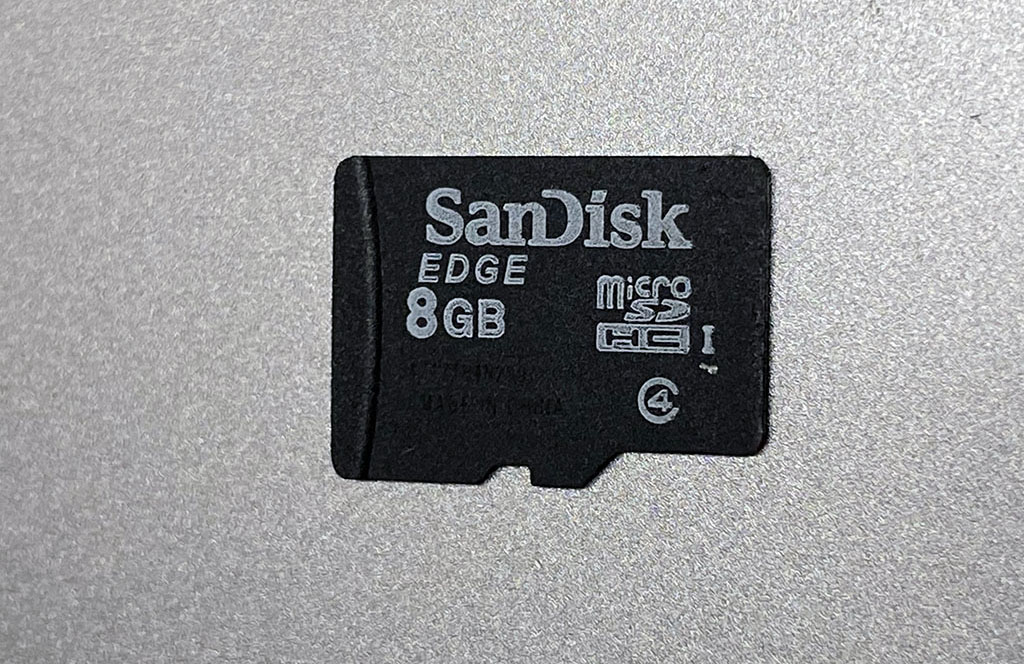
Follow this procedure to re-format a faulty SD-Card.
First:
Follow the steps in this article to first remove your SD-Card:
For Mac Users
Step 1 (Mac):
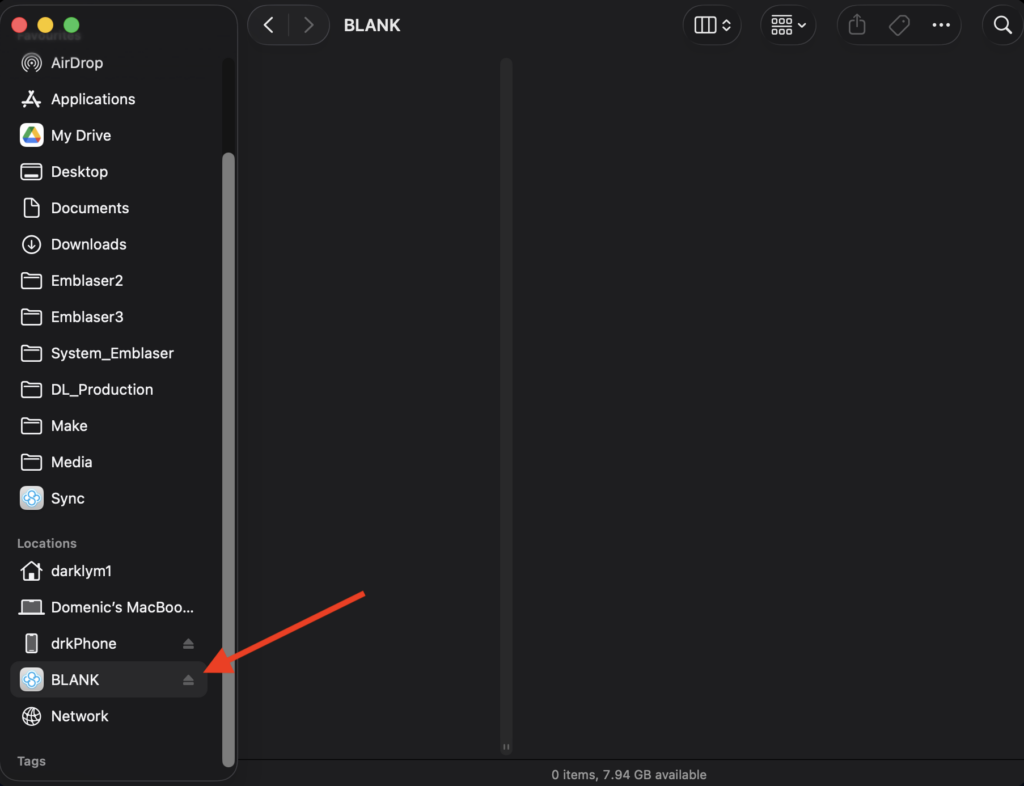
Insert the SD-Card into your Mac and locate it in Finder.
In our case, the SD-Card is called ‘BLANK’, but yours may have another name, such as ‘EPRO’.
Step 2 (Mac):
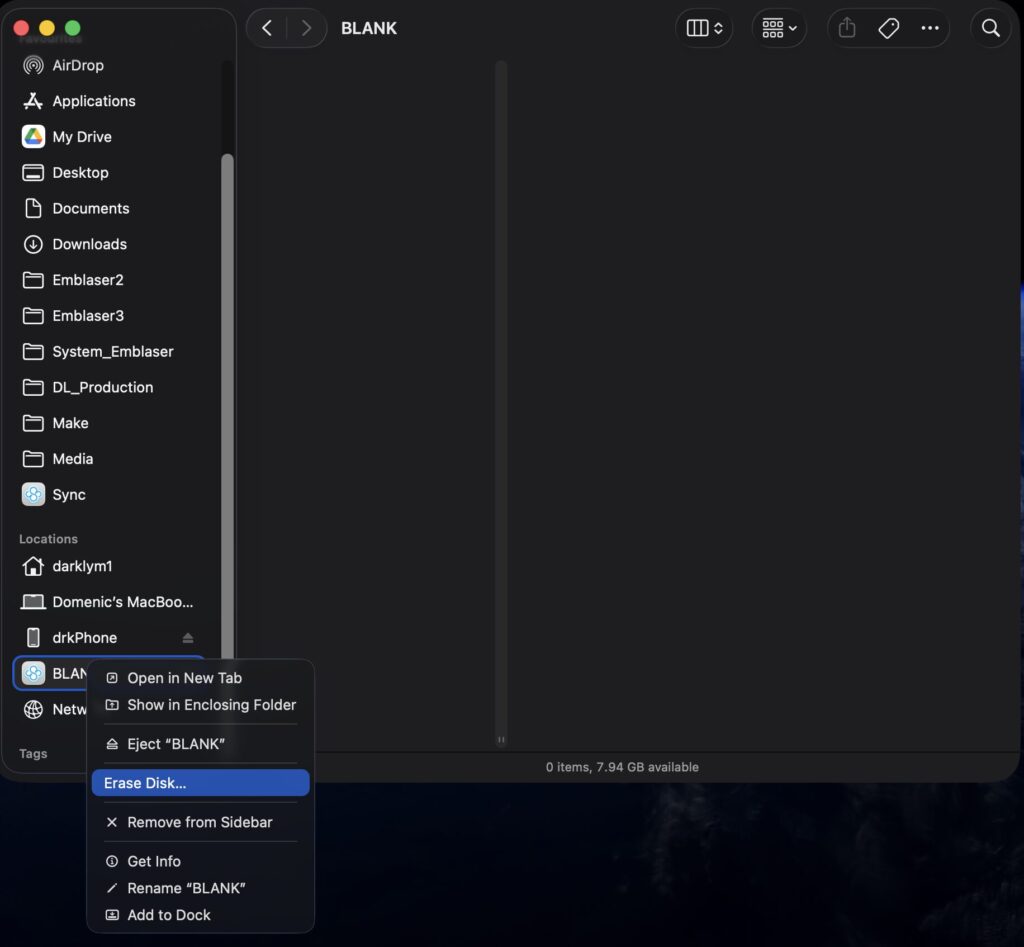
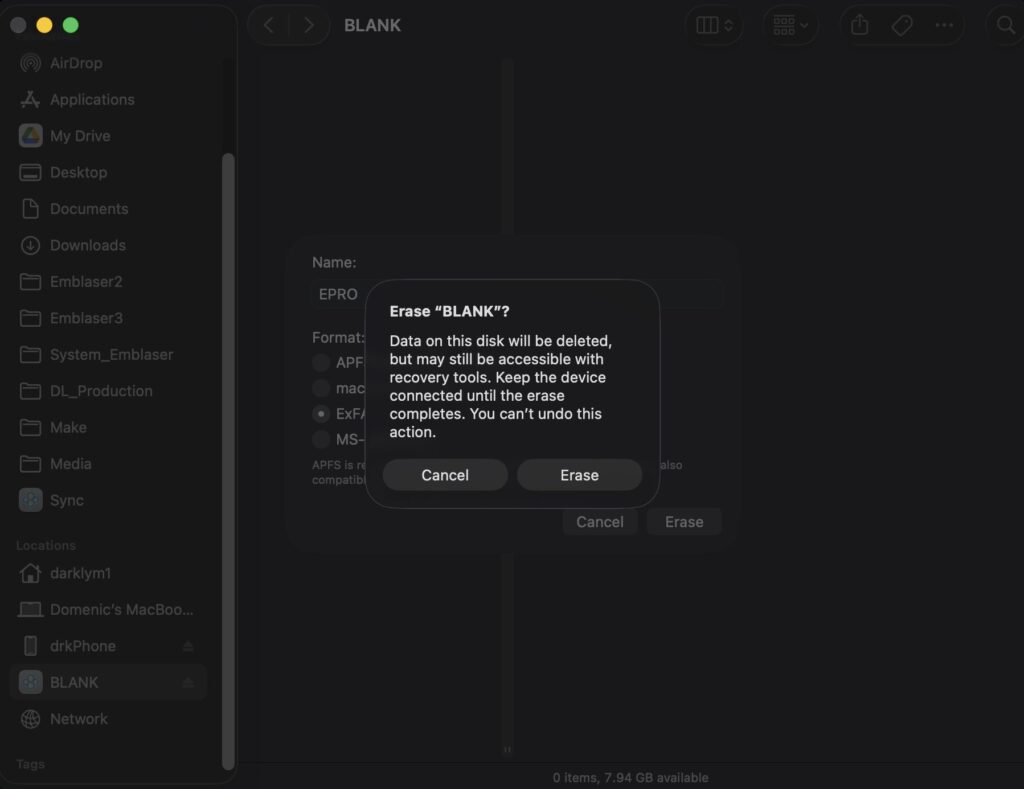
Right-Click on the SD-Card name and select ‘Erase Disk’
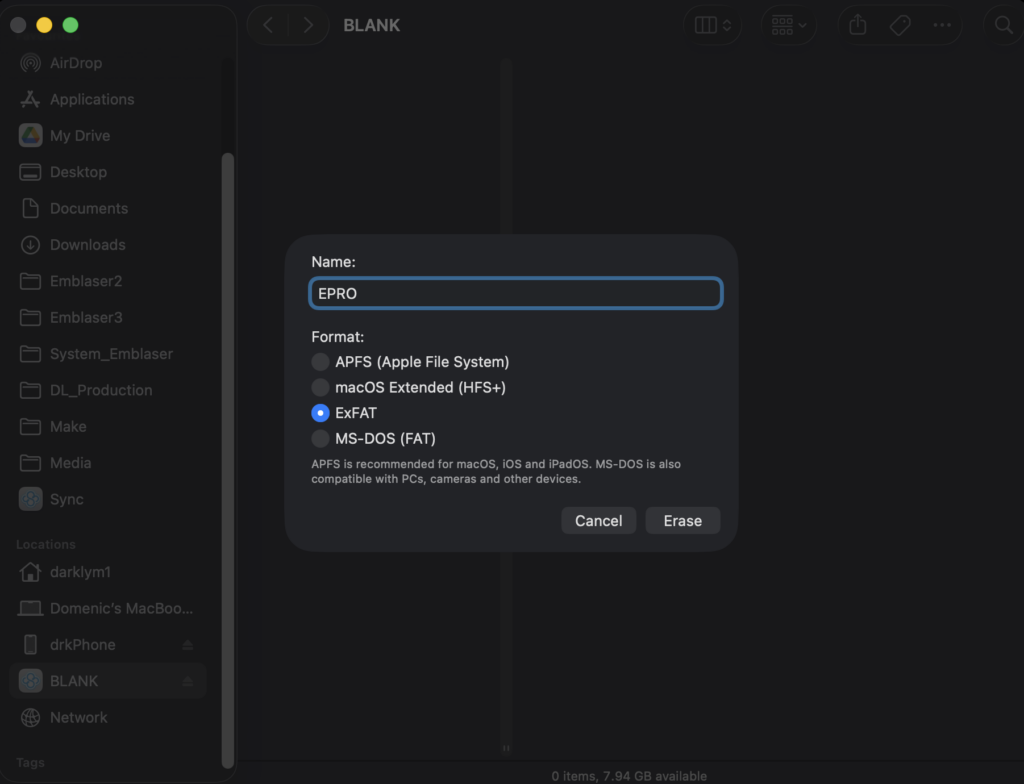
When the erase window opens, set the name to ‘EPRO’ and the format to ‘ExFAT’.
Then click ‘Erase’.
You may be prompted to confirm the process. Double check you have selected the correct card name and click ‘Erase’.
Step 3 (Mac):
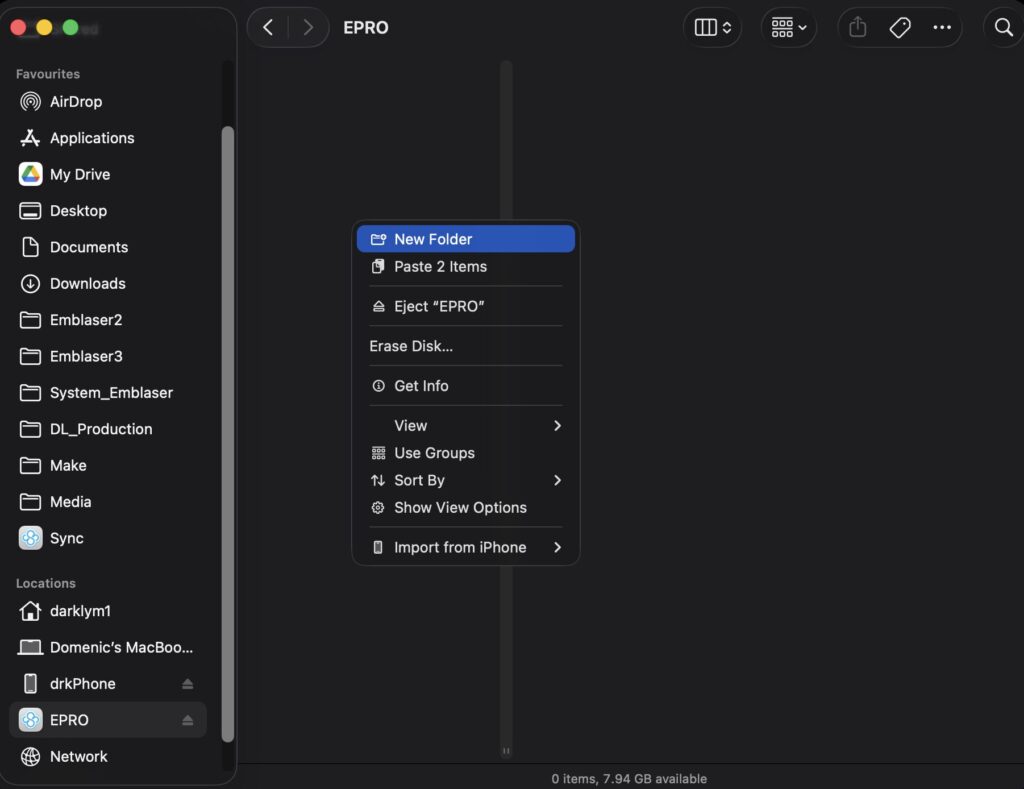
After formatting, your SD-Card will appear as ‘EPRO’.
Right-Click on its name and select ‘New Folder’.
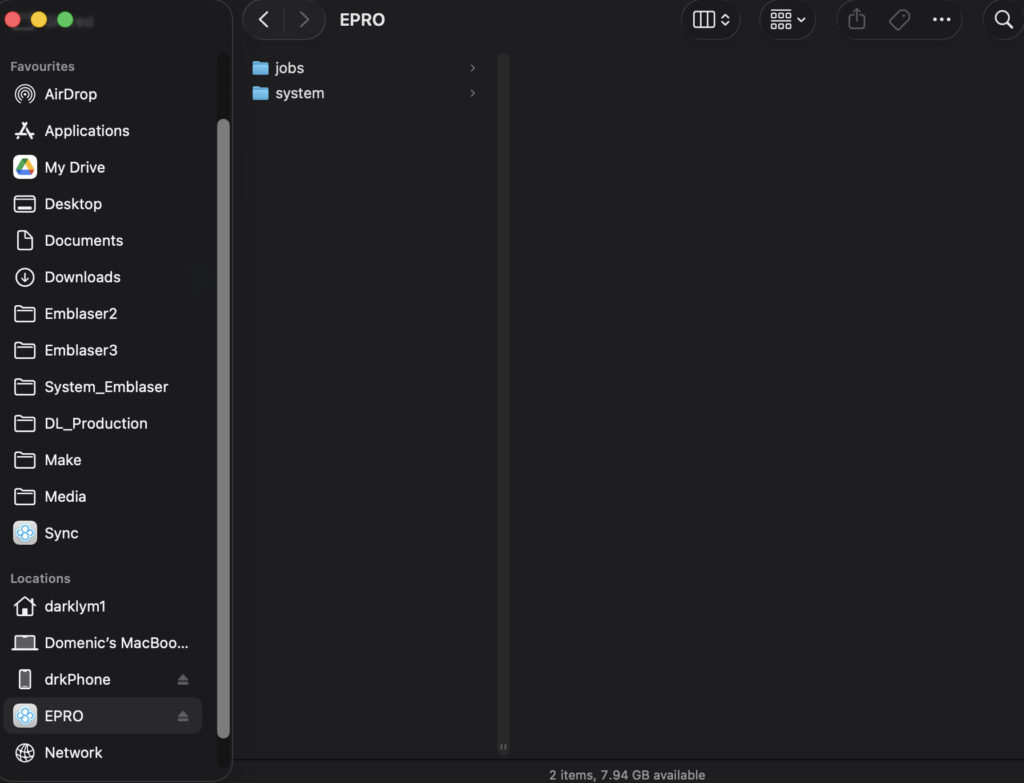
Create 2 new folders called, ‘jobs’ and ‘system’.
Step 4 (Mac):
Download the following files from the firmware repository located here:
Files to download:
- Latest Controller Firmware (epro_fw-2.2.xxxx.bin)
- _Support Files / focuscheck.bin
- _Support Files / on_boot.bin
Step 5 (Mac):
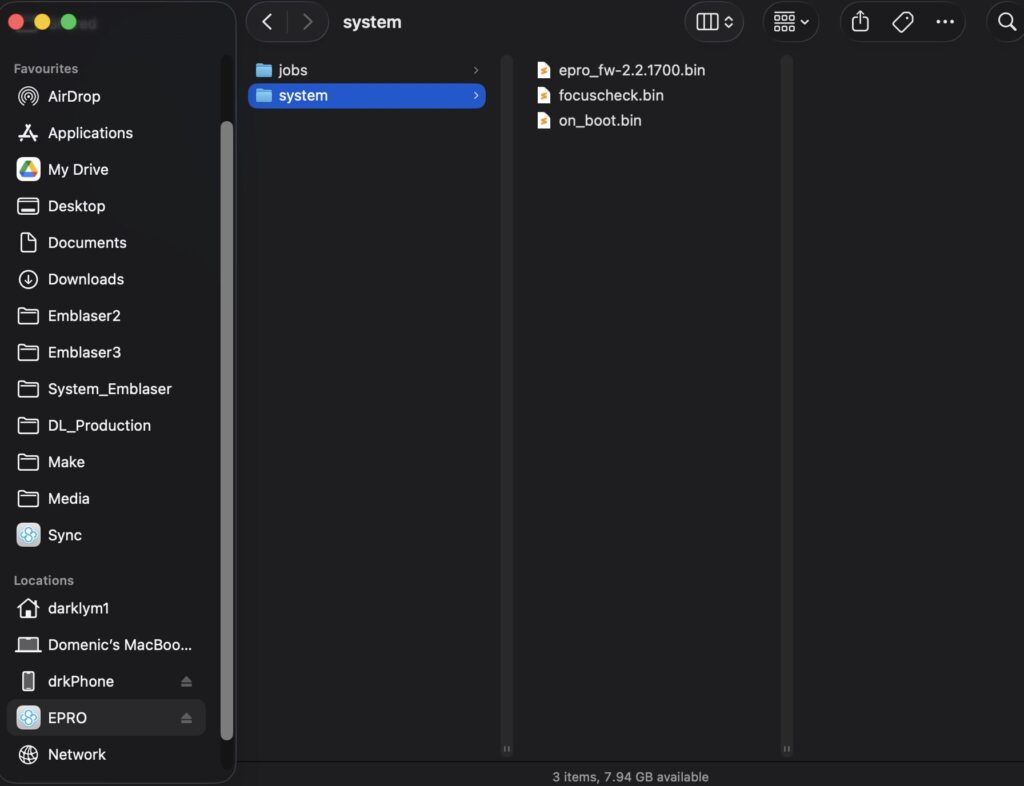
Copy these 3 files into the ‘system’ folder.
Step 6 (Mac):
Re-insert the SD-Card into your Emblaser Pro and replace the rear cover.
When you restart your machine, the new firmware will automatically install.
You can then proceed to update the camera or wifi firmware if they are outdated.
For Windows Users
Step 1 (Win):
Insert the SD-Card into your PC and locate it in File Manager.
In our case, the SD-Card is called ‘BLANK’, but yours may have another name, such as ‘EPRO’.
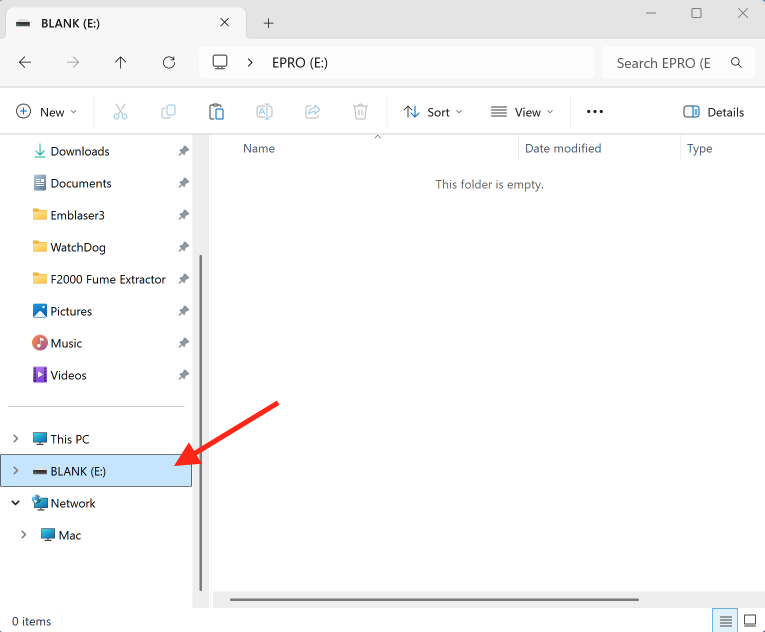
Step 2 (Win):
Right-Click on the SD-Card name and select ‘Format’
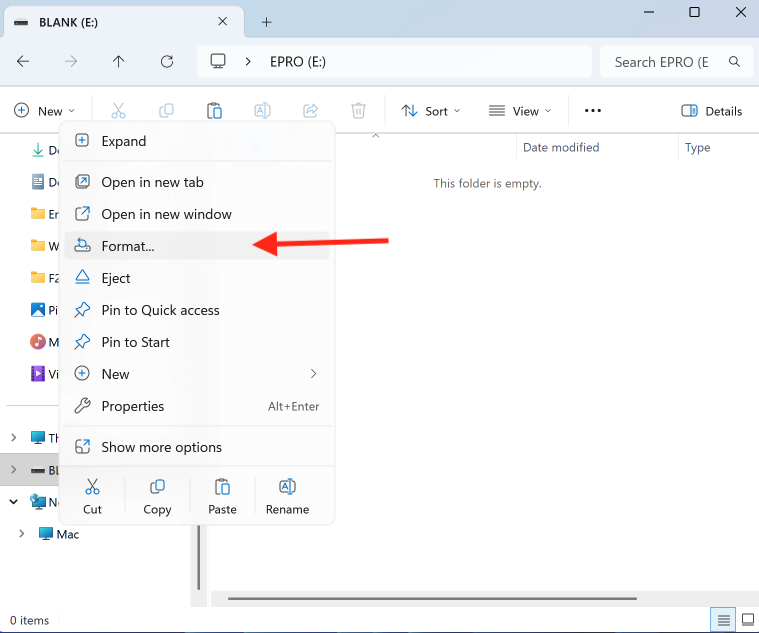
When the Format window opens, set the file system to ‘exFAT’ and the Volume label to ‘EPRO’.
Then click ‘Start’.
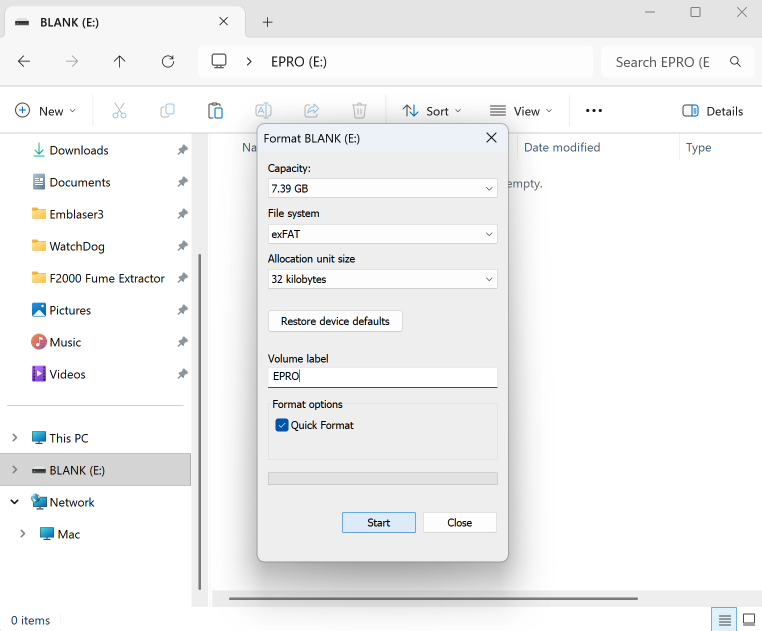
Step 3 (Win):
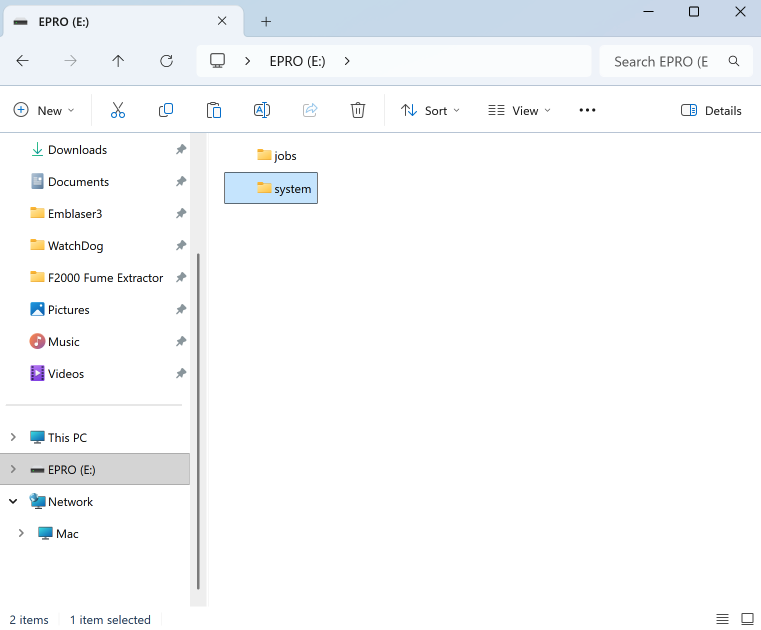
After formatting, your SD-Card will appear as ‘EPRO’.
Right-Click on its name and select ‘New / Folder”.
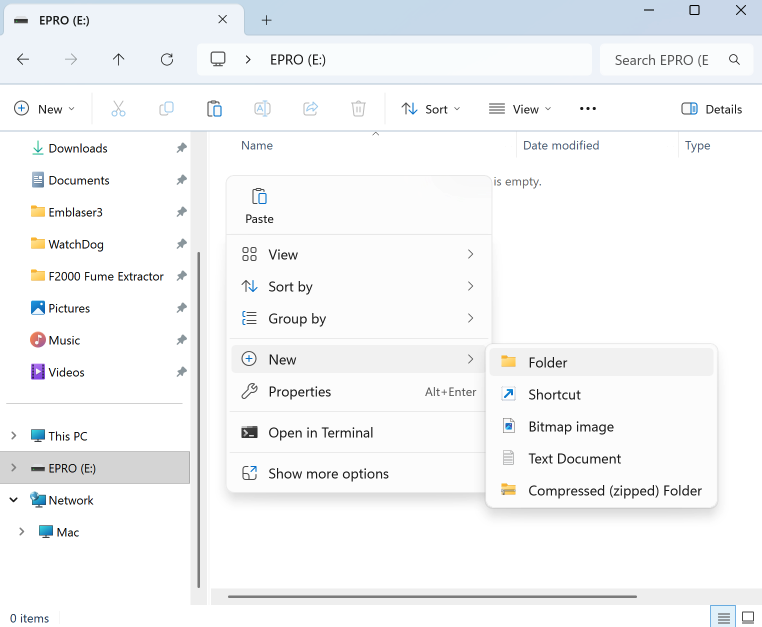
Create 2 new folders called, ‘jobs’ and ‘system’.
Step 4 (Win):
Download the following files from the firmware repository located here:
Files to download:
- Latest Controller Firmware (epro_fw-2.2.xxxx.bin)
- _Support Files / focuscheck.bin
- _Support Files / on_boot.bin
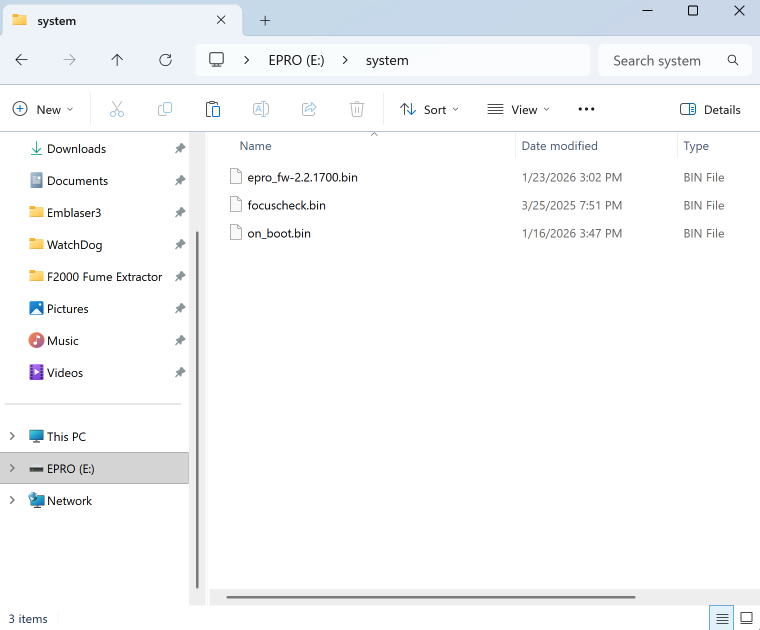
Step 5 (Win):
Copy these 3 files into the ‘system’ folder.
Step 6 (Win):
Re-insert the SD-Card into your Emblaser Pro and replace the rear cover.
When you restart your machine, the new firmware will automatically install.
You can then proceed to update the camera or wifi firmware if they are outdated.
