

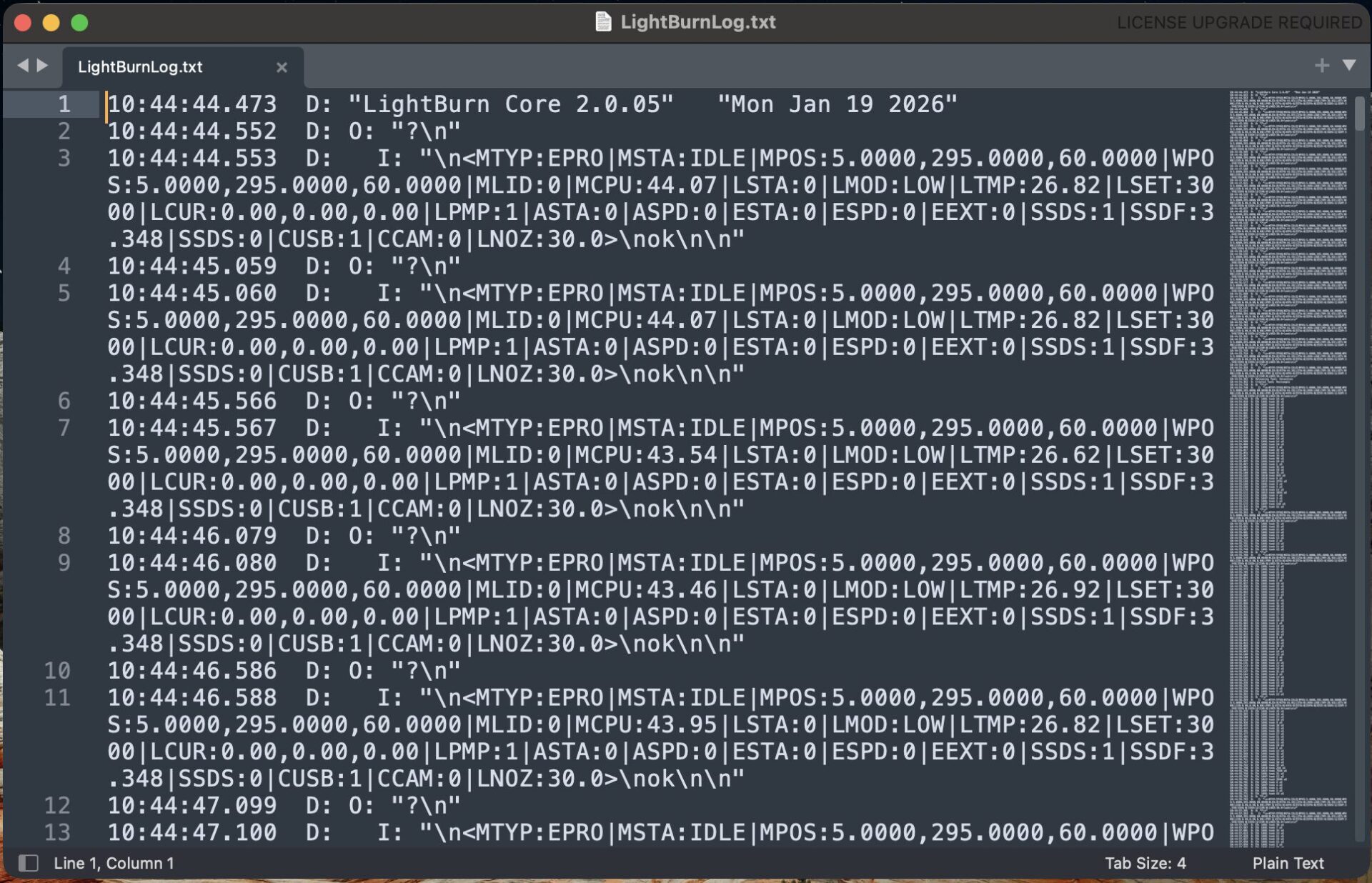
If you are experiencing issues with your Emblaser and LightBurn, we may ask you to generate a ‘debug log’ to send us.
Step 1: Make sure LightBurn is not running.
Ensure you do not have LightBurn running on your computer.
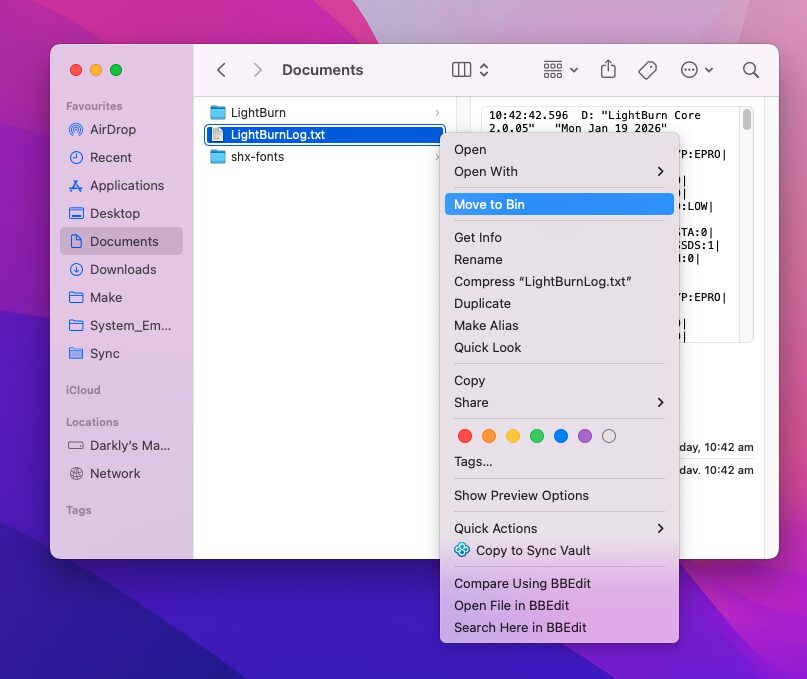
Step 2: Remove any old debug logs
Navigate to your ‘Documents’ folder and delete the file called ‘LightBurnLog.txt’ if it exists.
Step 3: Start LightBurn
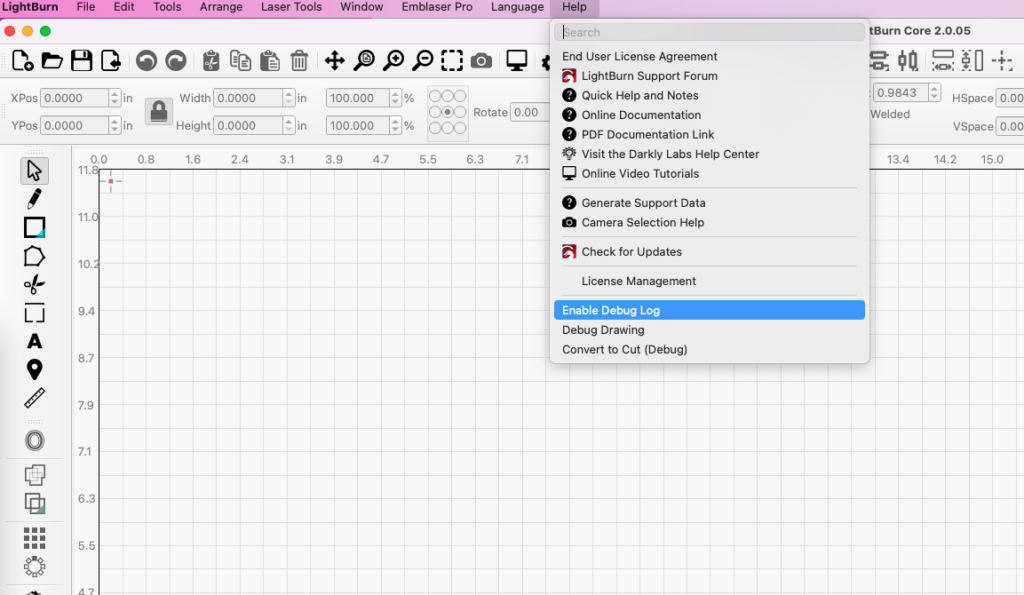
Run LightBurn.
Go to the ‘Help’ dropdown menu and select ‘Enable Debug Log’.
Step 4: Perform tasks
Use LightBurn to reproduce the error / fault you are having.
Step 5: Close LightBurn
Close LightBurn down. This will trigger a new debug file to be created.
Step 6: Send Debug
There will now be a new ‘LightBurnLog.txt’ file created in the ‘Documents’ directory.
Email the file to us (help@darklylabs.com) or attach it to your support ticket.
